

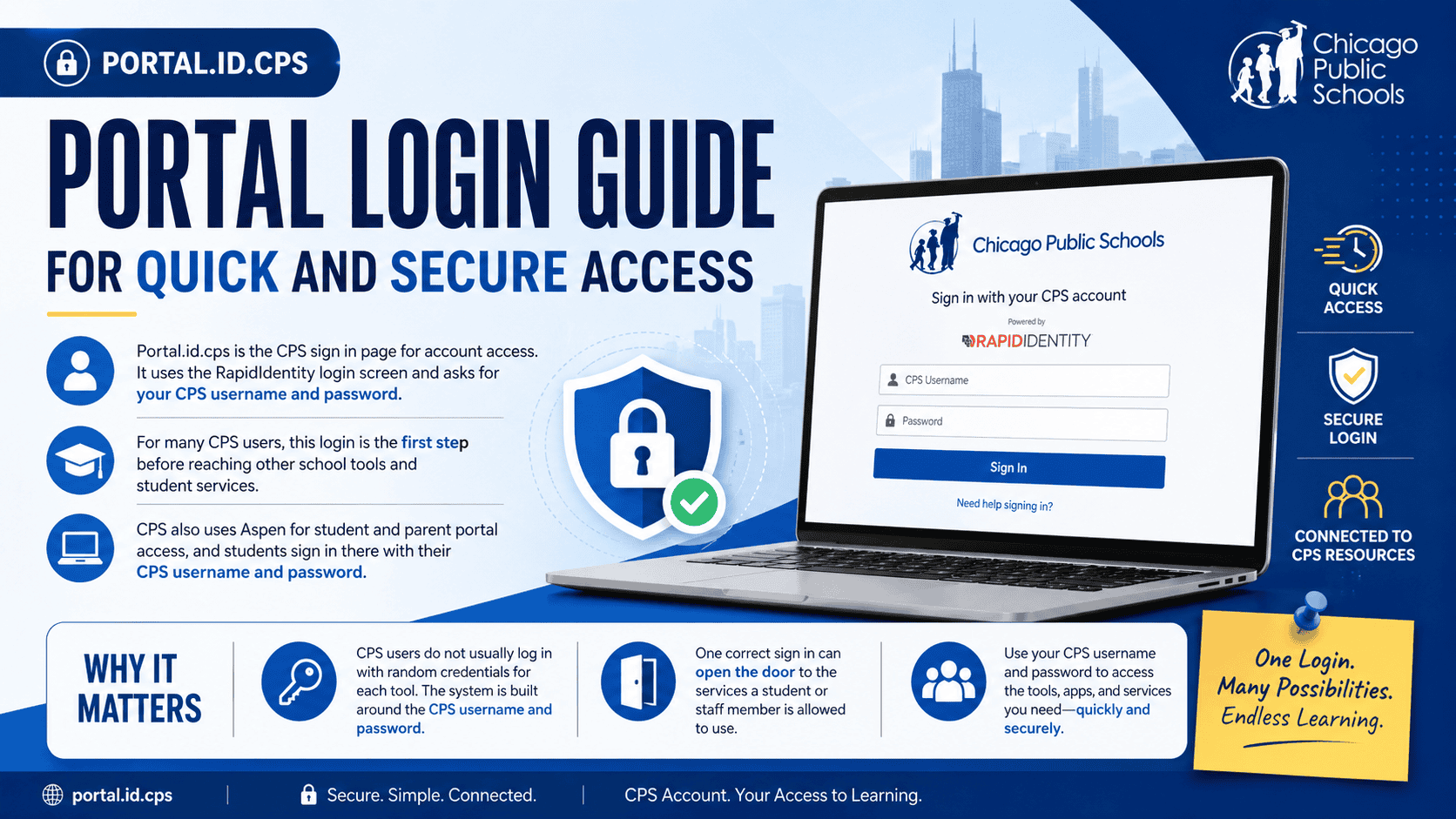

Portal.id.cps is the CPS sign in page for account access. It uses the RapidIdentity login screen and asks for your CPS username and password.
For many CPS users, this login is the first step before reaching other school tools and student services. CPS also uses Aspen for student and parent portal access, and students sign in there with their CPS username and password.
What Portal.id.cps Is
Portal.id.cps is part of the Chicago Public Schools account system. The portal opens a RapidIdentity sign in page, which acts as a central access point for CPS login needs. CPS help pages and school resources also point users to the CPS portal when they need account access or password help.
This matters because CPS users do not usually log in with random credentials for each tool. The system is built around the CPS username and password, so one correct sign in can lead to the services a student or staff member is allowed to use.
Who Should Use the Portal
Students use the portal when they need to reach CPS connected tools and services. CPS states that all students have Student Portal accounts, and the student portal uses the CPS username and password.
Staff also use CPS sign in pages with a CPS username and password. CPS staff pages direct users to sign in through official CPS login screens and to use the Password Management site when they need help with access.
What You Need Before You Sign In
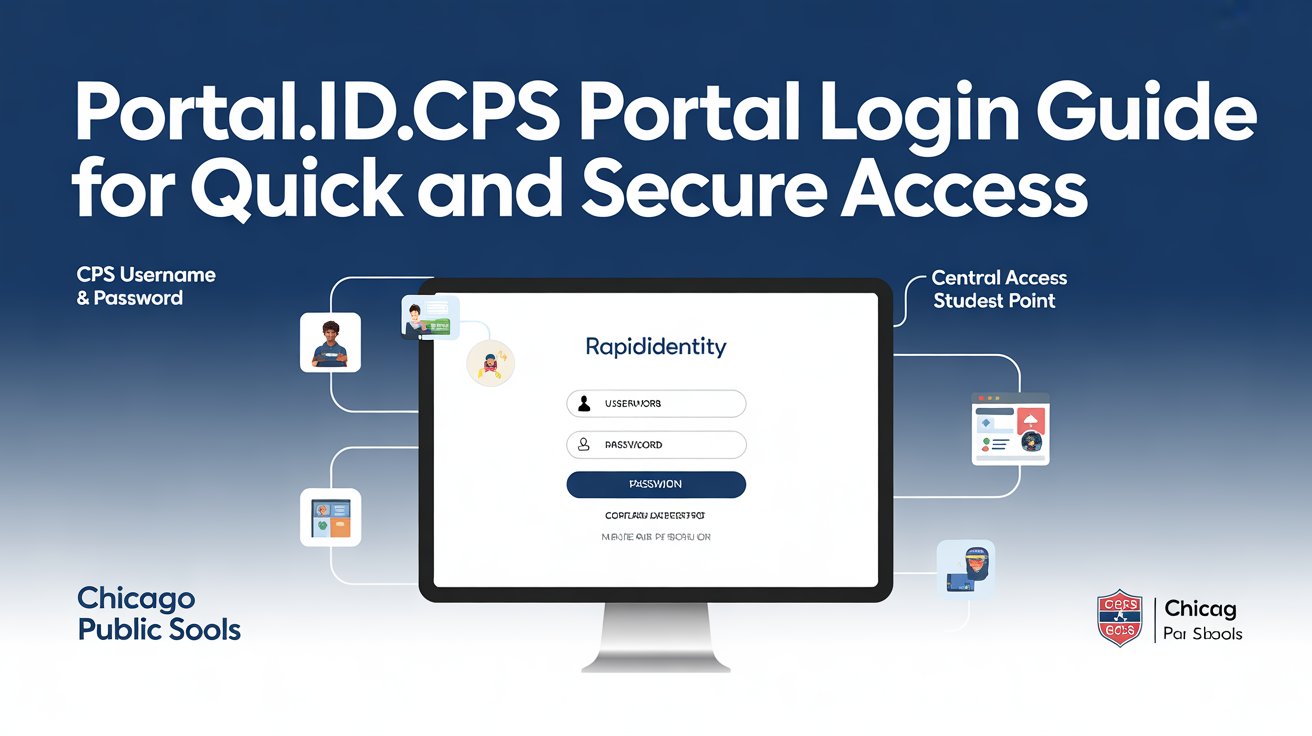
You need your CPS username and your CPS password. CPS support instructions say not to enter your full email address as the username. Use only the username part when the system asks for it.
If you are a new student and have never logged in before, some CPS schools say you may need to claim your account first. School guidance says first time users may need their legal first name, student ID number, and birthday to set up access.
How to Log In
- Open the Portal.id.cps sign in page. The page loads the RapidIdentity login screen for CPS users.
- Enter your CPS username. Do not type your full email address unless your school or CPS page clearly tells you to do that. CPS support pages specifically warn users to use the username part only.
- Enter your CPS password carefully. CPS login pages use the standard username and password format, and official help pages remind users to check spelling when they have trouble signing in.
- Select the sign in option on the page. After that, the portal sends you to the apps and services your account can access. CPS school guidance shows that the portal can be used as the starting point for apps such as school learning tools.
- Keep your session private. Always sign out after use, especially on a shared computer or school device. That is a basic security step for any account based portal and helps prevent unwanted access to your CPS account.
What You Can Access After Sign In
Students can use the CPS student portal to view grades, attendance, assignments, schedules, fees, health compliance information, and older school records. CPS says these features are available through Aspen and that students can reach the portal from smartphones, tablets, laptops, and desktop computers.
Parents and guardians can also use Aspen for grades, attendance, assignments, and teacher communication. CPS says the parent portal lets families manage student information in one place and also includes features such as E Absence reporting and online payments.
For parents, the portal also supports useful account management features. CPS explains that parents can reset their password through the Parent Portal Password Reset button, while students must contact their school for Aspen password help.
How Password Reset Works
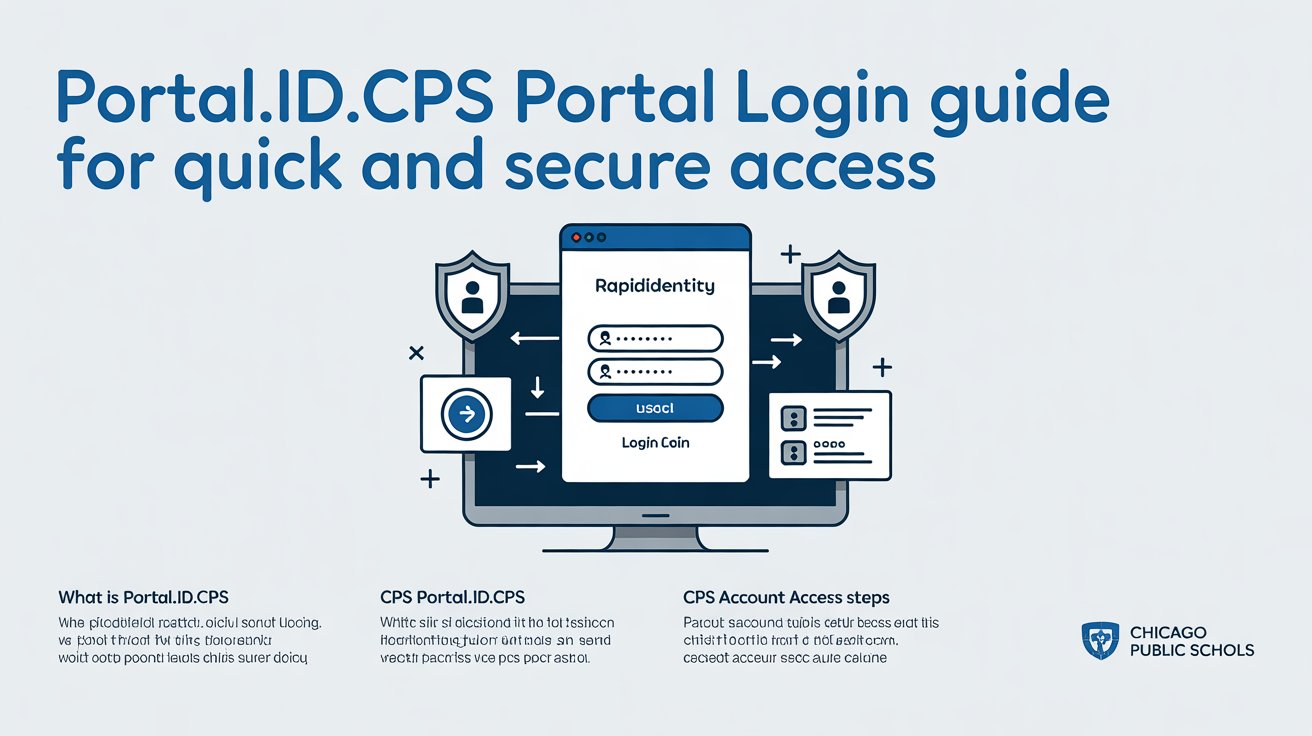
If you forget your CPS account password, the reset path depends on the account type. CPS staff login pages direct users to the official Password Management website for password recovery.
For student CPS accounts, school guidance says users can go to the CPS portal and click Forgot Password. One CPS school page says the reset process can use the answers to three challenge questions. It also says students who do not know those questions should contact their school for help.
For Aspen parent accounts, CPS says parents can reset their password from the Parent Portal Password Reset option by entering the Login ID and email address. CPS also notes that students cannot use that same parent reset route and must contact their school for help.
Common Login Problems
The most common problem is using the wrong username format. CPS support instructions say to use the CPS username, not the full email address. That small mistake can stop the sign in process even when the password is correct.
Another common issue is a simple typing error. CPS help pages tell users to check the spelling of the username and password when login fails. This includes checking for extra spaces, wrong capital letters, and outdated saved passwords in the browser.
Account access can also fail when the password has expired or needs recovery. In that case, CPS directs users to its official reset route rather than creating a new account. Staff are sent to Password Management, while parents and students use their own official reset paths.
If your account still does not work after a reset attempt, CPS school pages advise contacting your school or the CPS help desk. One CPS student account page lists the IT Help Desk as a final support option when the login problem does not clear up.
Security Rules That Matter
Use a strong password and keep it private. CPS parent portal guidance says passwords should be long, complex, and unique, and it warns users never to share passwords with other people.
Be careful with phishing emails. CPS says official Parent Portal emails come from the CPS no reply address tied to Aspen, and users should treat anything from a different address as suspicious. If a reset email looks wrong, delete it and use the official portal process instead.
Do not share sensitive details in messages. CPS warns users not to send student dates of birth or student ID numbers through email or text unless they are speaking in person or by phone. That advice helps protect account recovery information from being exposed.
When to Use Aspen and When to Use Portal.id.cps
Use Portal.id.cps when you need the main CPS sign in page or account access for CPS connected services. It is the entry point that many users go through before opening other CPS tools.
Use Aspen when you want grades, attendance, assignments, schedules, and related student information. CPS clearly lists Aspen as the student and parent portal and says students log in there with their CPS username and password.
Best Practices for Smooth Access
Keep your CPS username and password stored safely in a trusted password manager if your school allows that. Use a private device when possible, and avoid saving your password on shared computers. These habits reduce sign in problems and lower the risk of account misuse.
Make sure your browser is updated and that you are using the correct CPS sign in page. CPS resources show that different CPS services can use different login screens, so using the right official page matters.
If you are a parent, keep your school contact information current. CPS says schools may need to verify and update parent email addresses before an Aspen account can be created or recovered.
If you are a student and your account has never been used, check whether your school says you need to claim your account first. CPS school guidance says first time users may need to complete the account setup process before full access works.