


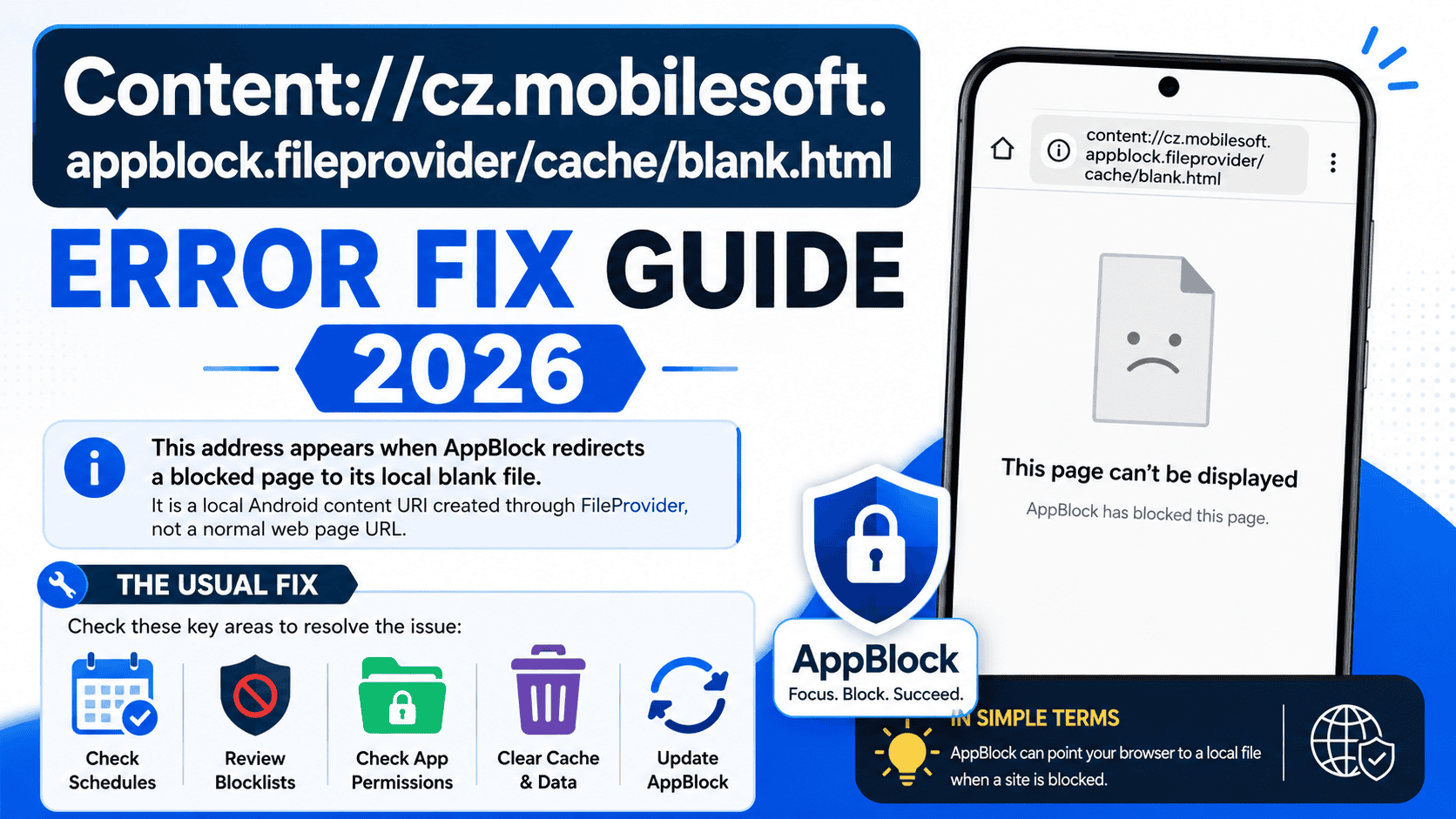
This address usually appears when AppBlock redirects a blocked page to its local blank file. It is a local Android content URI created through FileProvider, not a normal web page URL.
The usual fix is to check AppBlock schedules, blocklists, app permissions, cache, and updates.
What This Address Means
content://cz.mobilesoft.appblock.fileprovider/cache/blank.html uses the Android content:// format. Android explains that a content URI identifies data in a provider, and FileProvider creates secure content URIs for files instead of file:/// links. That is why this path looks technical and local rather than like a normal website address.
In simple terms, AppBlock can point your browser to a local file when a site is blocked. AppBlock says it is a screen time tool that blocks apps, websites, and social media, and its blocking features include strict modes and blocklists.
Why It Appears
The most common reason is an active block rule in AppBlock. AppBlock tells users to create or edit a schedule, open Blocklists, choose apps, save the blocklist, and activate it. When that kind of rule is active, a blocked page can be replaced with a blank local file instead of the original site.
Android FileProvider is designed for secure file access. Google states that FileProvider creates content:// URIs, can grant temporary access, and only serves file paths that are allowed in its <paths> configuration. That means the address is part of a controlled file sharing flow, not a broken internet link.
If you are facing access restrictions in online games, you can also read our detailed guide on This Game Cannot Be Played by a Player from CAO Error to learn the common causes and working fixes.
Quick Fix Table
| What you see | What it usually means | What to check first |
|---|---|---|
| The blank.html address appears when opening a website | AppBlock is likely blocking that site | Open AppBlock and review the active schedule and blocklist |
| The address appears even on sites you did not mean to block | A wider block rule may be active | Check all schedules, not only the main one |
| The page keeps coming back after changes | App settings may still be active in the background | Restart the browser and the phone after saving changes |
| The address appears after an update or crash | The app may need a refresh | Update AppBlock, then clear cache if needed |
| The block should be off but still works | Permissions or a second profile may still be active | Check permissions, profiles, and strict mode |
How to Fix It Step by Step
Open AppBlock first and check whether a schedule is active. AppBlock’s own help page shows that schedules and blocklists are the main tools for blocking apps and features, so this is the best place to start.
Turn off the active schedule or pause the blocklist. If the blank page stops appearing, the URI was being shown because the block rule was still running. This is the most direct fix when the goal is to stop the redirect.
Check whether the wrong sites are added to the blocklist. AppBlock lets you choose apps and features to block, so a site can keep opening the blank page if it is still listed in the active block set. Remove only the item you do not want blocked, then save the change.
Update AppBlock from Google Play or the app store on your device. AppBlock is an active screen time app with ongoing features, so an outdated version can keep older settings or bugs in place. A fresh update is a safe first repair step.
Clear the app cache if the blank page keeps returning after you change settings. The path includes /cache/, which makes cache cleanup a sensible step when the app seems to keep old block data. After clearing cache, reopen the app and test the site again. This is a practical troubleshooting step based on how cached app data often behaves on Android.
Restart the browser after changing AppBlock settings. A browser can keep an old redirect or open session in memory, so a restart helps it load the latest block state. After that, test the site one more time. The effect should reflect the current AppBlock rule set.
Restart the phone if the problem is still there. Android apps and permissions can stay active in the background, and a full restart clears many temporary states. This is useful after schedule changes, cache changes, or permission changes.
Check AppBlock Permissions
AppBlock may rely on URI access and browser level control to enforce blocks. Android explains that content URIs can use temporary permissions and that read or write access should be granted only when needed. If AppBlock lost a needed permission, the block flow can behave badly or keep showing the wrong page.
Open the Android settings for AppBlock and confirm that its required permissions are still allowed. Then recheck the browser. If the app no longer has the access it needs, the block page may fail to load in the way you expect.
Check Strict Mode and Hidden Profiles
AppBlock says Strict Mode makes blocks harder to bypass, and it also mentions cooldown and third party approval features. If Strict Mode is on, the app may keep blocking a page even when you think a normal block is off. Review every active profile before changing more settings.
Also check for more than one schedule. The AppBlock help page shows that schedules can be created and edited one by one. A second schedule can keep the blank page active even when the first one looks turned off.
Check the Browser That Opens the Link
Some browsers handle local content:// links better than others. Since FileProvider works through content URIs and temporary access permissions, the browser must still be able to process that local file correctly. If one browser keeps showing the issue, test another browser on the same phone.
If the address works in one browser and fails in another, the browser is part of the problem. If it fails in every browser, the AppBlock rule or Android permission setup is more likely the cause.
Browser and connection issues can also trigger SSL-related errors, so check our guide on www.xnxx.com Sent an Invalid Response. ERR_SSL_PROTOCOL_ERROR for step-by-step troubleshooting methods.
When Reinstalling Helps
Reinstall AppBlock only after the basic checks are done. Google’s FileProvider documentation shows that content URI access depends on the app’s file paths and permissions, so a damaged install or broken app data can keep the redirect active. Reinstalling can refresh that app state.
Before uninstalling, note your active schedules and blocklists. AppBlock’s own setup flow is built around schedules and blocklists, so removing the app without checking those settings can make the same block return after reinstall.
Technical Check for Android Users
If you are checking this as an Android issue, remember the key rule. FileProvider only returns content URIs for files that are allowed in its configured paths. Android also says FileProvider is meant for secure sharing and temporary access, not open file exposure. So a broken or missing file path can stop the blank page from loading cleanly.
That is why the URI may appear even when the app is working correctly. The path itself is the result of a controlled local file handoff, not a public web page. In AppBlock’s case, that local file is part of how it blocks distractions and keeps the block active.
Final Checks Before Testing Again
Make one change at a time. First stop the active schedule. Then save the blocklist change. Then restart the browser. If needed, clear cache, restart the phone, and finally reinstall the app. This step by step order is the cleanest way to find which setting is causing the blank page to appear.