

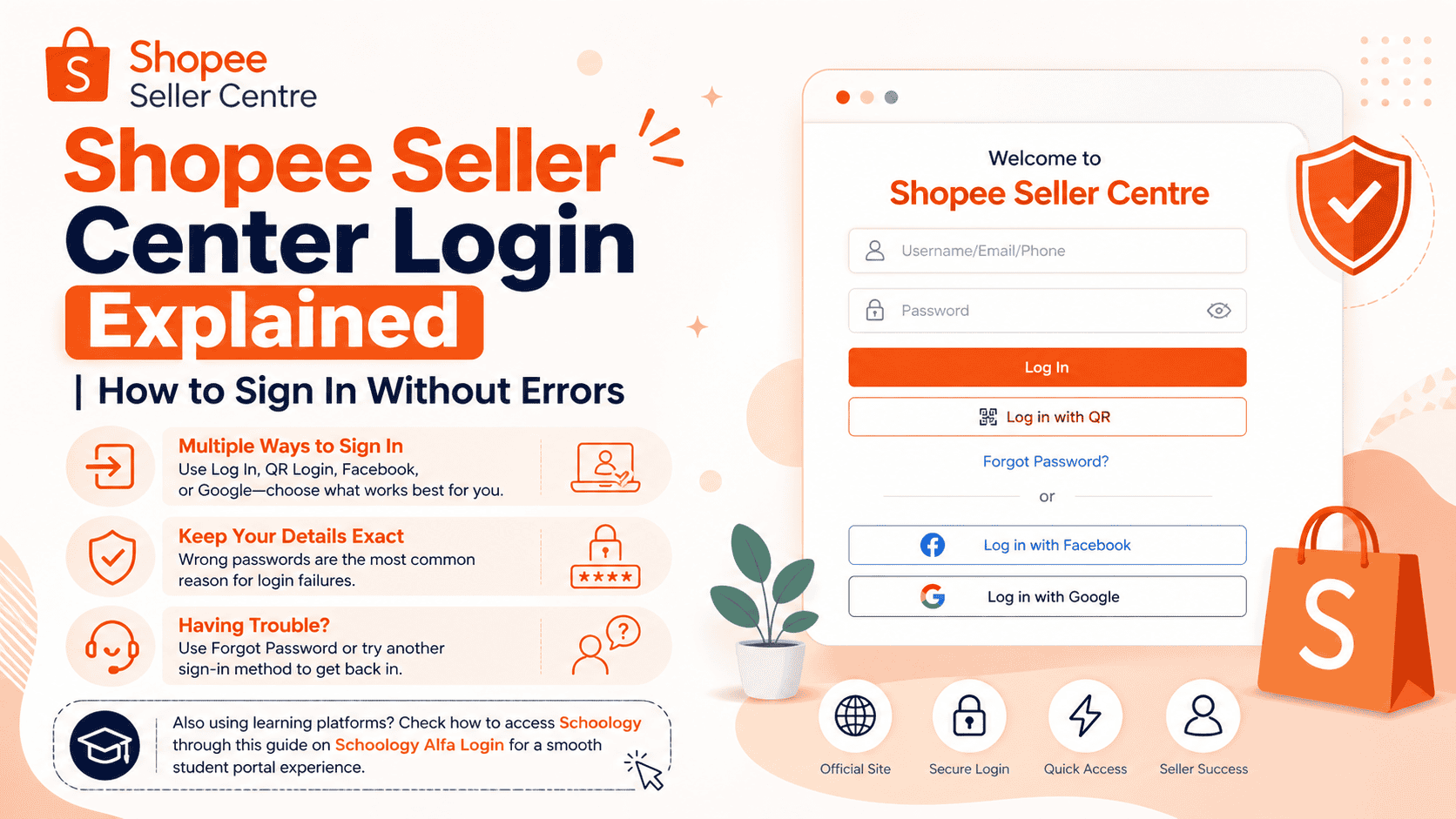

Shopee Seller Center login is done through the official Seller Centre page or the seller app. Use the account details linked to your shop, or sign in with QR, Facebook, or Google when those options appear.
What the Seller Center Login Page Offers
The official Shopee Seller Centre login page currently shows a normal Log In button, a Log in with QR option, Forgot Password, and social sign in choices such as Facebook and Google. That means sellers have more than one way to access the account, which helps when one method is not working. The exact login flow can differ by Shopee market, but these options are listed on the live seller login page in Shopee Malaysia.
How to Sign In on the Website
Start by opening the official Seller Centre page for your Shopee market. Then choose Log In and enter the details linked to your seller account. If your shop is tied to a Facebook or Google account, use that same account to sign in. The official page also shows a QR login option, so some users may see a faster sign in path instead of typing a password.
Keep the login details exact. A wrong password can stop access right away, and Shopee’s help center says incorrect password is one of the most common reasons a login attempt fails. If you are using a third party account, make sure the password for that account is also correct.
If you also use learning platforms, you can check how to access Schoology through this guide on Schoology Alfa Login for a smooth student portal experience.
How to Sign In with QR
QR login is useful when you do not want to type details on a computer. Shopee’s help center says QR code login works by scanning the code with the Shopee app that is already logged in on another device. Shopee also shows a seller app feature that lets users scan a QR code from the app homepage to log in to Seller Centre on PC.
This method is helpful when you already have the app open on a phone. Open the QR scanner in the app, scan the code on the Seller Centre login page, and confirm the request on the mobile device. This avoids typing a password on the computer and can be faster for repeat access.
Common Login Errors and Why They Happen
Shopee’s help center lists several common login problems. The first is an incorrect password. The second is an expired verification code. Shopee says OTP codes sent by SMS must be entered within 60 seconds, or a new code must be requested.
Another reason is a limited account. Shopee says an account may be limited for security reasons, such as suspicious login activity or suspected hacking attempts. It may also be limited for policy violations. In some cases, policy violations can lead to permanent suspension.
Technical issues can also stop a login. Shopee advises users to keep the app updated and use a stable internet connection. If you are signing in with Google, Facebook, or Apple on a supported account, Shopee says the third party account details must be correct too.
How to Fix a Wrong Password
If the password is wrong, check it carefully before trying again. Use the exact password that belongs to the seller account or the linked third party account. Do not guess too many times, because repeated failed attempts can waste time and may make it harder to complete a clean login later. Shopee’s help center directs users with forgotten passwords to the reset flow from the login page.
If the account uses a third party login, sign in with the same provider every time. For example, if the shop account was set up with Google, use Google. If it was linked to Facebook, use Facebook. Mixing account types is a common reason people think their password is wrong when the real issue is that they are using the wrong sign in method.
How to Reset a Forgotten Password
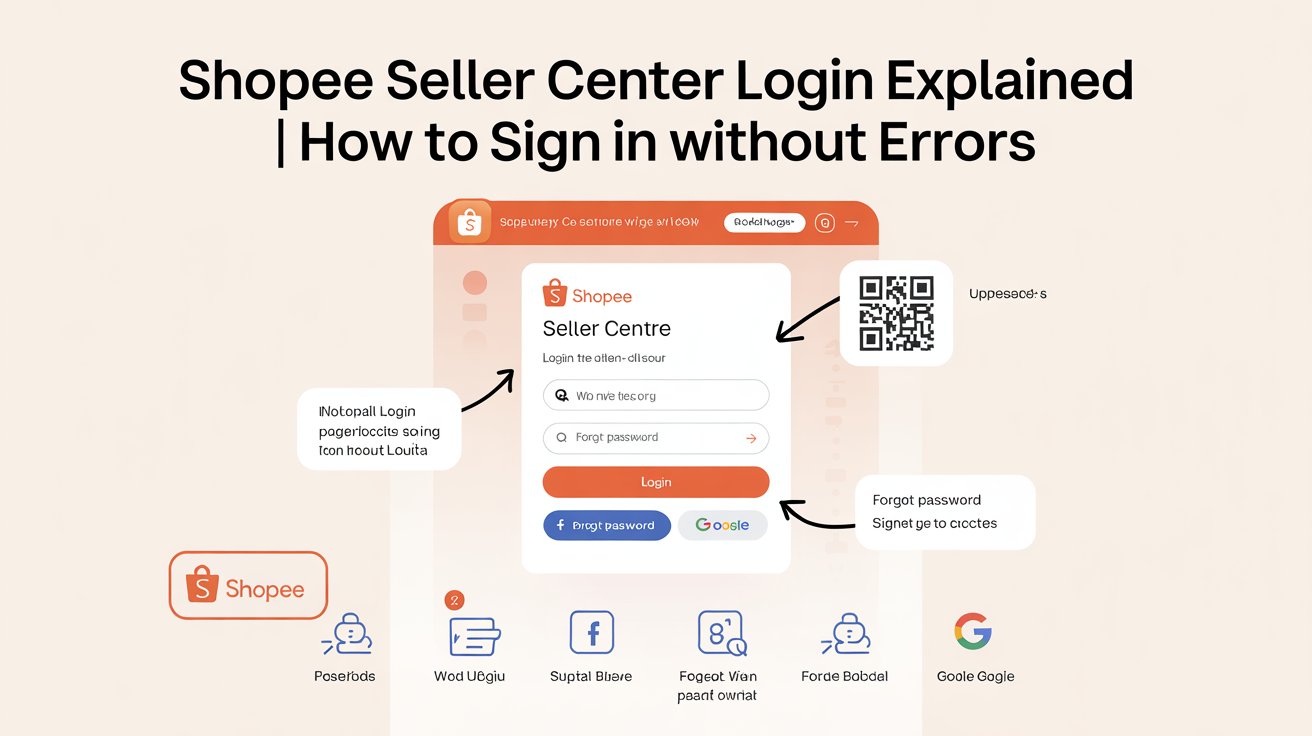
If you cannot remember the password, use Forgot Password on the login page. Shopee’s help center says forgotten passwords can be reset through the Shopee app and website, and the app guide shows recovery paths through ShopeePay PIN, phone number, or email OTP. The exact method shown depends on how the account was set up.
The app reset flow is straightforward. Tap Forgot? on the login page, enter the phone number or email linked to the account, choose a verification method, complete the check, and then create a new password. Shopee says phone number verification uses a code sent by SMS or WhatsApp, while email verification uses an email OTP.
After you reset the password, use the new one right away and keep it safe. Shopee’s support notes also recommend using a strong password with a mix of upper and lower case letters, numbers, and symbols. That reduces the risk of another login problem later.
How to Handle OTP and Verification Code Problems
If Shopee sends a verification code and it does not work, check the time limit first. Shopee says SMS verification codes expire after 60 seconds. When that happens, you must request a new code and enter it before it expires.
If the code never arrives, the issue may be tied to the account, the phone number, the email inbox, or the device connection. Shopee’s help center points users to its OTP issue guidance and says a stable internet connection helps when login errors are caused by technical issues. In simple terms, check the signal, check the inbox or SMS app, and try again with a fresh code.
For students managing reading assignments online, you can also follow this guide on ReadingPlus Student Login to access your account without errors.
How to Check Account Security
Shopee has an Account and Security page that helps users monitor recent activity. The page shows events like new login detected, phone number updated, email updated, and password changed. It is meant to help users self check suspicious actions and improve account security.
If you see something unfamiliar, Shopee says to change the password immediately. If everything looks normal, you can mark the activity as fine. This is a useful habit for seller accounts because seller profiles often handle orders, customer messages, and shop settings that should stay protected.
When the Account Is Limited
A limited account needs extra care. Shopee says account limits can happen for security reasons, including suspicious login activity or suspected hacking attempts. They can also happen when a user breaks Shopee policies. In that case, the account may stay restricted until Shopee reviews it or the issue is resolved.
If this happens, keep your login details ready and follow the official support route. Do not keep trying random passwords or unsupported methods. That does not fix the root cause, and it can make the process slower.
How to Keep Seller Login Smooth
Use the official Seller Centre page only, and avoid copied links from unknown messages. Keep the app updated, because Shopee says technical login errors may be linked to outdated app versions. Also use a stable internet connection before you sign in. These are small steps, but they prevent many common login failures.
The Shopee Seller Center app is also built for shop management on mobile. Google Play describes it as a tool for product management, order processing, buyer chat, performance tracking, and promotional tools. That makes it useful for sellers who need quick access when they are not at a computer.
If you cannot log in after trying the correct password, QR login, and reset options, use Shopee’s help center support routes. The support pages note that users who cannot access their email or phone recovery methods should contact customer service through the options shown at the bottom of the help page.