



Students can access the Reading Plus student login portal by using either a school site code with direct login or a district single sign on portal such as Clever or ClassLink. The exact sign in path depends on how the school set up Reading Plus.
How the Reading Plus student login portal works
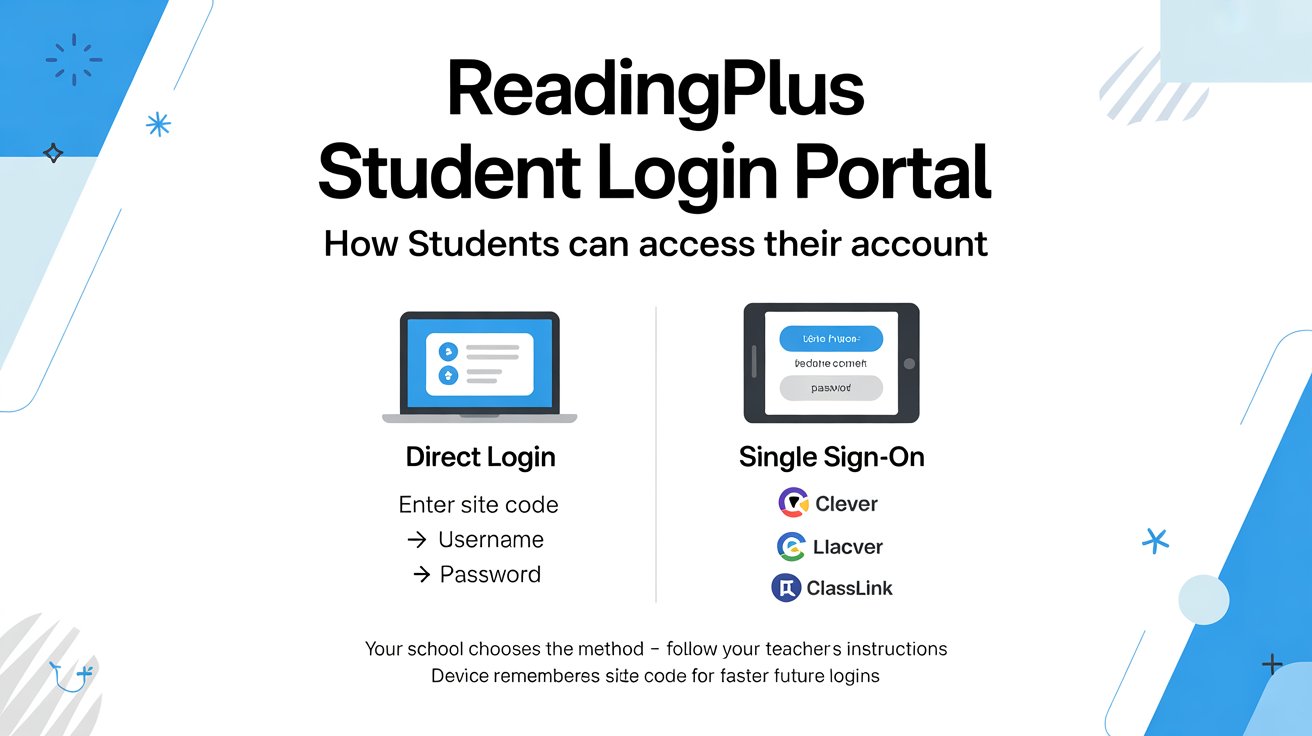
Reading Plus gives students two official ways to sign in. One option is Single Sign On, which sends students through their district portal or a third party portal like Clever or ClassLink. The other option is direct login through the Reading Plus login page. Schools choose the method, and students should follow the one their teacher or district uses.
For direct login, Reading Plus says students first enter the school Site Code, then their username and password. The Site Code is tied to the whole school, so all students at that school use the same code. Reading Plus also notes that the device remembers the Site Code after the first successful login, which makes later logins faster on the same device.
What students need before signing in
Before opening the Reading Plus student login portal, students should have the correct login method, the school Site Code if their school uses direct login, and the correct username and password. If the school uses Single Sign On, students may need their district login, a Clever Badge, or a ClassLink QuickCard, depending on the setup.
Reading Plus also says that if a student uses Single Sign On, the credentials are created and managed by the school or district. Customer Support does not have access to those credentials, so students or families should contact the teacher or district IT team for help with SSO login details.
You can track online platforms and manage accounts easily by understanding different login systems like Meesho Seller Login, which works through a separate seller dashboard used for business account access.
Direct login steps for students
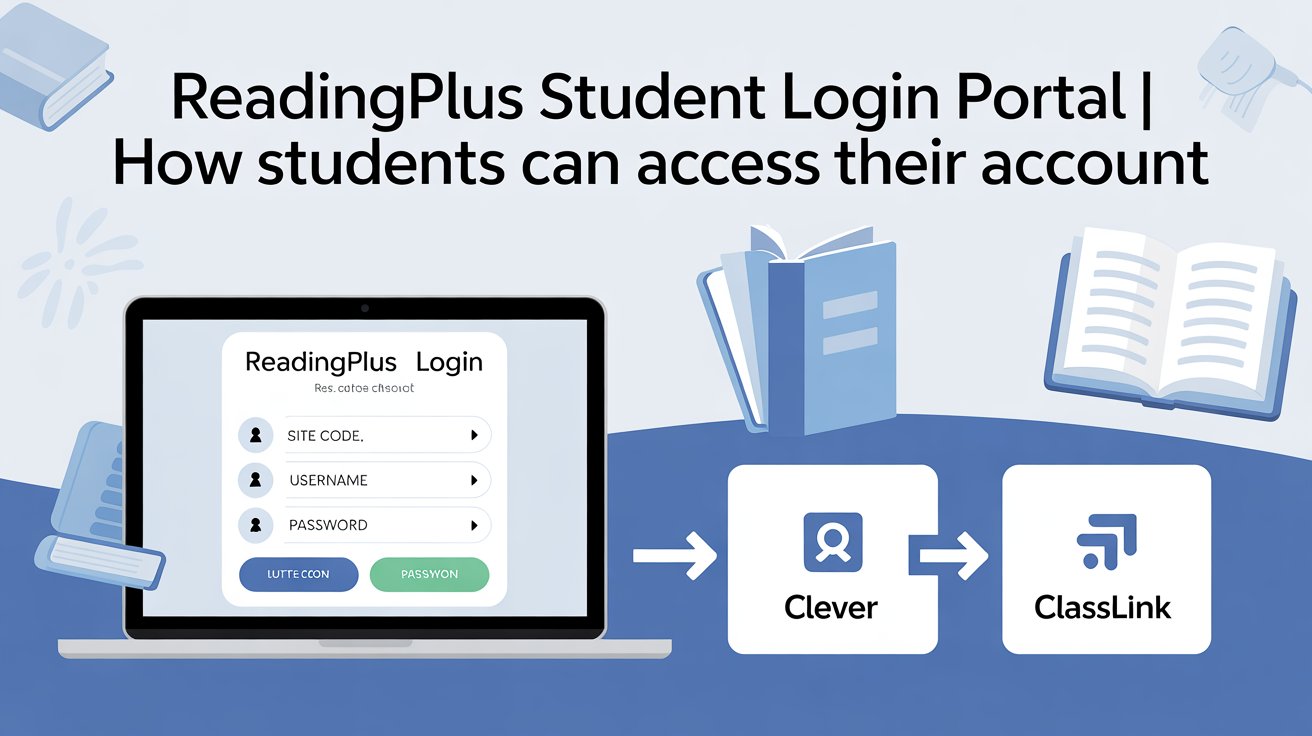
Direct login is the simplest option when a school uses the Reading Plus login page instead of a district portal. Reading Plus directs students to open the official login page in a browser, choose the student option, enter the Site Code, and then enter the username and password.
- Open a web browser and go to the official Reading Plus login page. Reading Plus lists the direct login path at login.readingplus.com.
- Choose the student login option. Reading Plus says the student login page opens after the student button is selected.
- Enter the school Site Code and click Next. Reading Plus explains that the Site Code is the school’s main entrance to the program.
- Enter the student username and password and log in. Reading Plus says this completes the direct sign in process.
The school Site Code is only required the first time on a device. After that, Reading Plus says the device remembers the code for the next login. That is helpful for shared classroom devices and home devices used often by the same student.
Single Sign On steps for students
Some schools use Single Sign On instead of direct login. Reading Plus says SSO can go through a district portal or through a third party portal like Clever or ClassLink. In those cases, the student starts at the district portal, signs in there, and then opens the Reading Plus icon from the portal menu.
When the district uses SSO, Reading Plus says students may type a district username and password, or they may use a Clever Badge or ClassLink QuickCard. The exact flow depends on how the school configured the portal. Once the student is authenticated in the portal, the Reading Plus account opens from there.
Students should know the URL or shortcut for the district portal before trying to sign in. Reading Plus says that if students already use Clever or ClassLink, they should follow the district portal route and then select the Reading Plus icon after login.
Many schools also use learning platforms such as Schoology Alfa Login, where students access assignments, class updates, and digital learning materials through a secure portal.
What the student sees after login
After signing in, students land in the Reading Plus experience that is built around their dashboard and reading tasks. Reading Plus says the student dashboard is designed to show goals, progress, and lesson information in a way that helps students understand how they are growing as readers.
The student area also includes personalized practice and text selection. Reading Plus says students can choose texts through interest filters, and the platform provides vocabulary work and lesson choice inside the student experience. This is part of how the program supports fluency, comprehension, vocabulary, stamina, and motivation.
For families, Reading Plus says the dashboard and family portal help parents and guardians see assignments and progress more clearly. The program also includes printable materials such as worksheets, graphic organizers, and writing prompts that support reading comprehension work at home.
Common login problems and what to check
If the portal does not open, the first thing to check is whether the student is using the correct login method. Reading Plus clearly separates SSO login from direct login, so a student who tries the wrong method may not get in even if the username and password are correct.
If the Site Code is missing or wrong, Reading Plus advises families to ask the teacher or classmates who also use Reading Plus. If they still cannot get the code, Reading Plus says to contact Customer Support. For usernames and passwords, Reading Plus says the teacher must provide them if the child has forgotten those details.
The student login page itself also shows an error for an incorrect Site Code and tells the user to try again or contact the teacher. That confirms that the Site Code is a key part of the sign in process for direct login schools.
If the login page loads slowly, freezes, or appears blank, Reading Plus says network filtering or allow list settings may be involved. The official system requirements page recommends allowing Reading Plus domains and notes that blocked or filtered URLs can cause slow loading, freezing, white pages, or text only pages.
Device and browser requirements
Reading Plus says the program works on many modern browsers and operating system configurations. For computers, laptops, and Chromebooks, the official system requirements list supported versions of Windows, macOS, and Chrome OS, along with Chrome, Firefox, Edge, and Safari versions depending on the device.
Reading Plus also recommends Google Chrome for the best experience. For home use, the support article says students can use Reading Plus on computers, laptops, Chromebooks, and most tablets and iPads through an internet browser. It also says there is currently no Reading Plus iPad app, so students should use the browser on iPad.
The system requirements page says the minimum screen size is 9.5 inches and the minimum screen resolution is 1024 by 768 pixels. It also notes that iPad mini is not supported, Windows RT and Windows 10 S are not supported, and tablet devices with keyboard attachments are not recommended.
Reading Plus student login portal at home
Reading Plus provides a home setup guide for families. It says families should update browsers to the most recent version, bookmark the correct login site, and make sure security or filtering tools allow Reading Plus domains. The home setup article also points families back to the student login instructions when they are ready to sign in at home.
The home guide says the login site may be the district Clever portal, ClassLink, a district portal, or a school specific direct login URL, depending on how the school set up access. That means families should not guess the login route. They should use the same path the teacher or school gave them.
Reading Plus also says families can trust only the school issued access details. If the Site Code is forgotten, the teacher or classmates can help, and if that does not solve the problem, Customer Support is the next step.
Where students and families should get help
Reading Plus directs students and families to the teacher first for missing usernames, passwords, or Site Codes. For direct login, the teacher provides the username and password if those details are forgotten. For SSO, the school or district manages the login credentials, so district IT may need to help.
The official support pages also point users to Customer Support when they cannot recover a Site Code or when additional help is needed. Reading Plus lists support resources on the login page and on its help articles, which makes the portal part of a larger support system rather than a standalone page.
For students who need a clean path to the account, the key rule is simple. Use the login method your school assigned, keep the Site Code and credentials ready, and ask the teacher when any detail is missing. Reading Plus says that is the correct way to reach the student account through the portal.