



A page size checker helps find oversized files and slow page elements before they hurt performance. The main goal is to reduce transfer size, cut waste, and make each page load faster on mobile and desktop.
What a Page Size Checker Should Measure
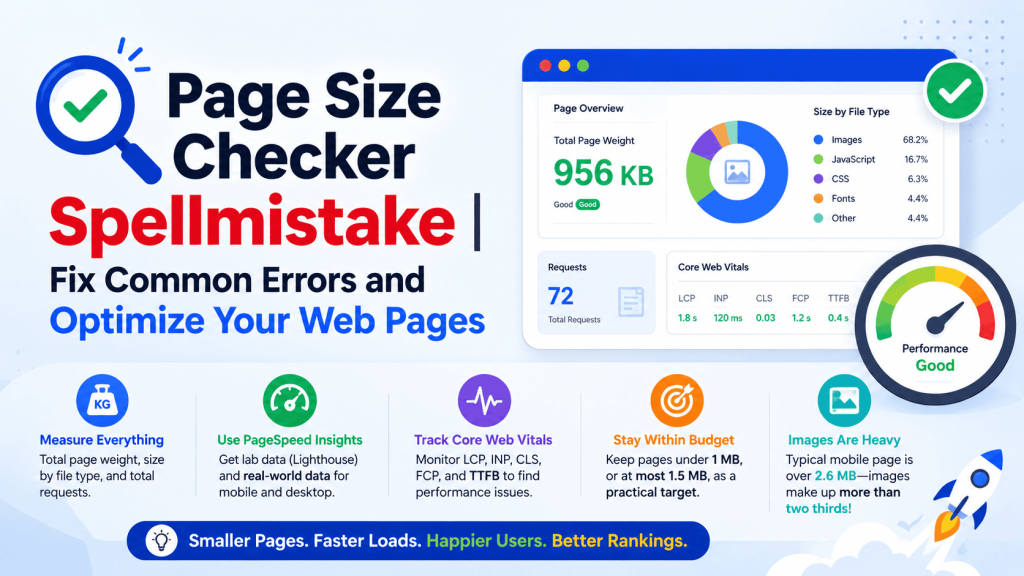
A useful page size checker should measure the total page weight, the size of each file type, and the number of requests needed to load the page. Google recommends using PageSpeed Insights to assess performance on mobile and desktop, with both lab data from Lighthouse and field data from real users. PSI reports Core Web Vitals and related metrics such as FCP, LCP, CLS, INP, and TTFB, which helps identify where the page is slowing down.
Page weight matters because heavy pages take longer to download, parse, and render. Web.dev notes that some teams set a performance budget and keep pages below 1 MB, or at most 1.5 MB, as a practical target. Web.dev also reports that a typical mobile web page weighs over 2.6 MB, and images make up more than two thirds of that weight, which shows why size checks are useful.
Common Page Size Errors and How to Fix Them
| Common error | What it causes | Clear fix |
|---|---|---|
| Images are larger than their display size | Extra bytes, slower loading, more mobile data use | Save images at the right dimensions and use srcset so the browser can choose a smaller file when needed. |
| Text files are not compressed | HTML, CSS, JavaScript, and SVG transfer too slowly | Enable Brotli where possible, or gzip as a fallback. Web.dev says Brotli usually improves compression by about 15% to 20% over gzip. |
| Unused JavaScript is shipped to users | More parsing, more execution, slower interaction | Remove unused code and split code so only the needed part loads first. Web.dev recommends using DevTools coverage to find code that can be removed or loaded later. |
| Offscreen images load too early | Wasted network use on content not yet visible | Use lazy loading so non critical images load only when needed. MDN says lazy loading defers image loading until it reaches a calculated distance from the viewport. |
| Cache rules are weak or missing | Repeat visitors download the same files again | Set proper Cache-Control rules so browsers and shared caches can reuse stored responses. |
How to Optimize Images
Images are usually the biggest part of page weight, so they should be checked first. Web.dev recommends not saving images larger than their display size, and it explains that srcset lets the browser choose the smallest suitable version based on screen size and viewport size. Responsive image markup with srcset and sizes gives the browser useful information so it can request the most efficient file.
Lazy loading also helps image-heavy pages. MDN says the loading="lazy" value defers image loading until the image is near the viewport, which avoids unnecessary network and storage bandwidth. MDN also notes that width and height attributes help the browser reserve space and reduce layout shift, which supports a better visual experience.
Responsive images should be planned, not added late. Web.dev explains that srcset and sizes are the common path for efficient image delivery, while <picture> is useful when different source formats or different crop choices are needed. That means a page size check should not only look for large images, but also check whether each image is being served in the right form for the device.
How to Reduce Code and Transfer Size
A page can look simple and still be heavy because of JavaScript, CSS, and hidden framework code. Web.dev advises compressing text-based assets, at minimum with gzip, and considering Brotli for better compression. It also recommends removing unused code and using DevTools code coverage to find parts of the bundle that can be deleted or loaded later.
Lazy loading is not only for images. MDN says lazy loading can shorten the critical rendering path by loading non critical resources only when they are needed. It also explains that code splitting lets JavaScript, CSS, and HTML be divided into smaller chunks, so the page sends only the minimum code needed for the first render.
Compression settings also matter. Web.dev explains that gzip and Brotli can be tuned, and that dynamically compressed resources often perform best with middle range settings because they balance compression ratio and speed. This matters on busy sites, where the server still needs to respond quickly while keeping file size small.
How to Use Caching and Delivery Properly
Caching reduces repeat downloads and saves server work. MDN says the HTTP cache stores a response and reuses it for later requests, which makes responses faster because the browser does not always need to go back to the origin server. MDN also notes that proper caching lowers server load because the origin does not have to process every repeat request again.
Cache-Control is the main header used to manage this behavior. MDN says it holds directives for caching in browsers and shared caches, including proxies and CDNs. A page size checker should therefore flag missing cache headers, short cache times, and inconsistent rules for static assets such as images, CSS files, and JavaScript bundles.
Delivery also affects page size results. Even when a file is small, poor delivery can still slow a page if many resources arrive at once or if critical resources block rendering. That is why PSI, Lighthouse, and Core Web Vitals are useful together, because they show not only how large a page is, but also how that size affects real loading behavior and user experience.
Which Tools Help Most
PageSpeed Insights is the most direct starting point because it gives both field and lab data and offers suggestions for optimization. Lighthouse is useful during development because it tests pages in a simulated environment and helps catch performance problems before release. Chrome DevTools is also useful for checking network requests, identifying heavy assets, and finding unused code.
For ongoing monitoring, teams often combine PSI with analytics and performance budgets. Web.dev recommends building speed into team workflows, and it suggests setting page weight targets so designers and developers can keep size under control as content grows. This makes the checker part of regular maintenance instead of a one-time test.
Why Page Size Matters for SEO and User Experience
Page size is not the only ranking factor, but it strongly affects the signals that search engines and users experience. Google says PSI uses Core Web Vitals and related metrics to assess page experience, and web.dev explains that Core Web Vitals are central metrics for measuring how users experience loading, interactivity, and visual stability. A lighter page usually gives the browser less work to do, which supports better loading behavior and a smoother visit.
A page size checker is most useful when it leads to action. The best results come from checking images first, then compression, then unused code, then caching. That order matches the biggest and most common sources of page weight on modern websites, especially on mobile pages where images often dominate total size.
Simple Audit Checklist
A clean page size audit should confirm that images are sized correctly, text assets are compressed, unused code is removed, lazy loading is used where it fits, and cache headers are set for repeat visits. It should also check PSI and Lighthouse results together, because lab data and field data show different parts of the same problem. When these checks are run regularly, page weight stays under control and performance problems are easier to catch early.