

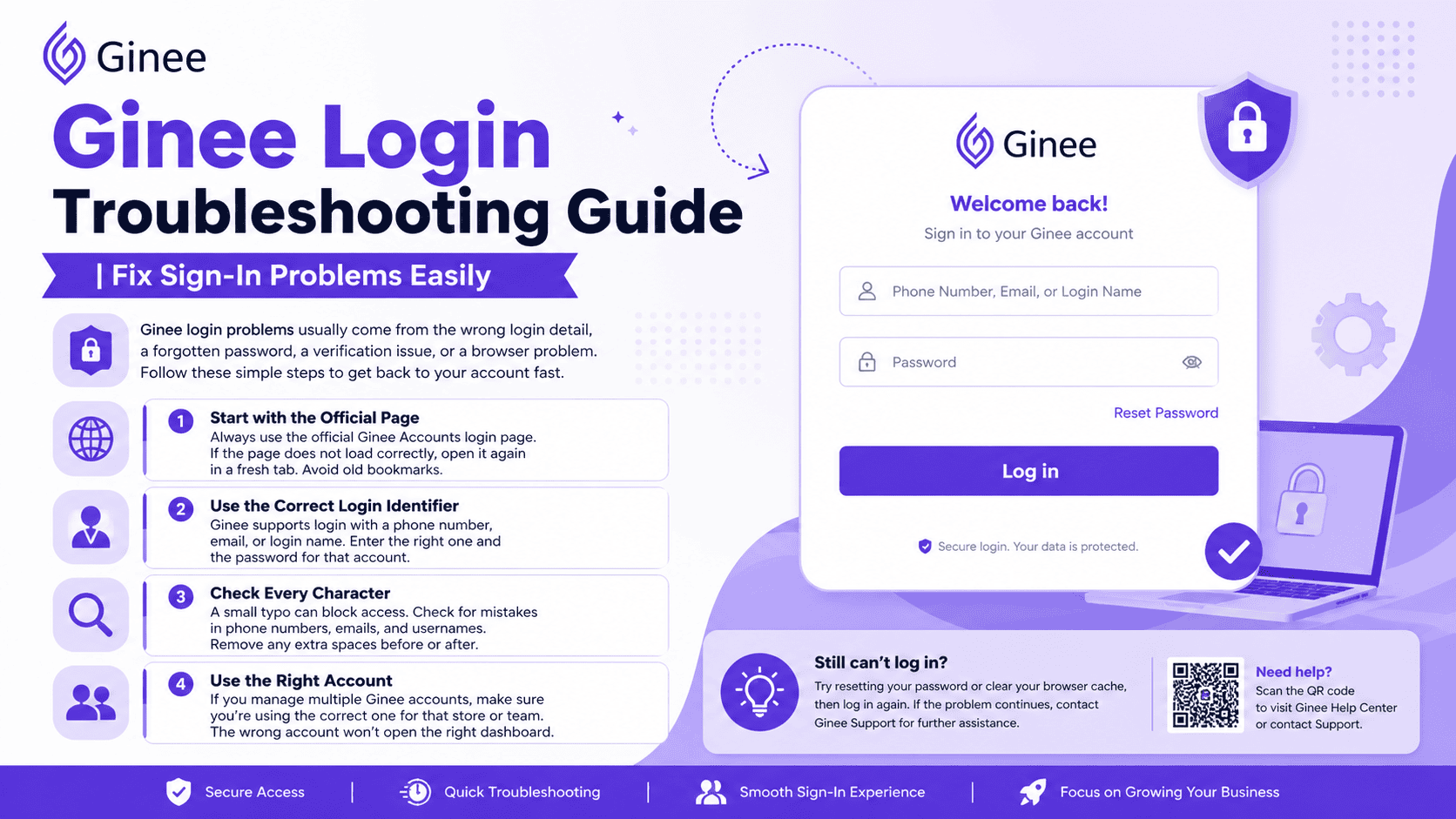

Ginee login problems usually come from the wrong login detail, a forgotten password, a verification issue, or a browser problem. The official login page accepts a phone number, email, or login name, and it also gives you a reset password option.
Use the Official Ginee Login Page
Start with the official Ginee Accounts login page. The page shows the login fields for phone number, email, or login name, plus a password box and a Reset Password option. Using the correct official page matters because Ginee runs account access through its accounts site.
If the page does not load correctly, open it again in a fresh tab. Do not rely on old bookmarks if they take you to a broken or outdated link. A clean login page removes one of the most common causes of sign in failure.
Check the Login Details Carefully
Ginee supports more than one login identifier, so the exact value matters. On the official page, you can sign in with a phone number, email, or login name, then enter the password for that account.
Check every character before you press Log in. A small typing mistake can block access, especially in phone numbers, email addresses, and usernames. Also make sure there are no extra spaces before or after the text you enter. That is a simple step, but it fixes many login errors.
If you manage more than one Ginee account, use the correct one for that store or team. The wrong account will not open the right dashboard, even if the password is correct.
Reset the Password the Right Way
If the password is lost or no longer works, use the official Retrieve Password page. Ginee asks for a phone number or email, then a verification code, then a new password and confirmation. That is the safest recovery path shown by Ginee itself.
Use the same phone number or email that belongs to the account. If the code does not arrive, check the inbox, spam folder, and message app first. Then request the code again only after you confirm the contact detail is correct. Ginee’s recovery flow depends on the account contact method, so the right number or email is important.
After you create the new password, go back to the login page and sign in again. Keep the new password safe and avoid reusing the old one if it was already exposed or forgotten. That lowers the risk of another access problem later.
Fix Verification and Account Activation Problems
Some login issues start before the account is fully activated. Ginee’s sign up flow asks new users for a shop name, phone number, email address, and password, then sends an email verification code and OTP. Ginee’s terms also state that account activation may require verifying the email address and or mobile number.
If you never finished sign up, the account may not be ready for normal sign in. In that case, finish the verification steps first, then try logging in again. A partially created account can look valid but still fail at the login stage.
If the verification code was already sent but not used in time, request a fresh one. Old codes can expire, and an expired code will not complete the login or activation step. That is especially common when users switch devices or wait too long before entering the code.
Solve Browser and Device Problems
A browser issue can stop the login page from working properly even when the account details are correct. Ginee content about technical problems recommends simple browser fixes such as clearing cache, reloading the page, checking for blocked windows, and trying another browser when a page does not behave as expected.
A good order for browser checks is simple. First, reload the page. Second, try another browser. Third, clear cache if the page still fails. Fourth, turn off extensions or pop up blockers if they interfere with the login screen. These steps are practical because they remove old data and browser conflicts that often break sign in pages.
Also check your internet connection and device time. A weak connection can interrupt verification and a bad browser session can keep the page from loading the right login form. If the login page keeps spinning or refreshing, open it in a private window and test again. That helps you see whether the issue comes from stored browser data.
Check Staff Account Access
If you use a team account, the problem may not be your password at all. Ginee says merchant accounts can manage staff accounts in Settings > Staff Management, and merchants can directly change a staff account password. After that password is updated, the staff account is automatically logged out.
This matters when a staff member says the old password stopped working. It may have been changed by the account owner or another admin. In that case, ask the merchant account holder to confirm the current password and access role before trying more recovery steps.
Staff access can also fail if the account role was changed or removed. When that happens, the login may still work, but the dashboard or tools may not open as expected. The fix is to check the assigned role, store permission, and current staff status inside Staff Management.
Check Whether the Right Ginee Product Is in Use
Ginee offers several products and account areas, including Ginee OMS, Ginee WMS, Ginee Chat, Ginee Enabler, Open API, Accounting, Fulfillment, POS, and Insights. The help center and login pages show that different services may use the same account system, but the access path can still change by product.
If you try to open the wrong product area, the page may look like a login failure when it is really a mismatched access path. Start from the correct Ginee page for the tool you need, then sign in with the account linked to that service. This avoids confusion between ERP, chat, WMS, and other modules.
If you also manage stores on other platforms, you can check the login process for Meesho through this guide on Meesho Seller Login.
When the Account Still Will Not Open
If the login still fails after checking the page, password, verification, browser, and staff access, the issue may be tied to account status or support handling. Ginee’s help center is built for account questions, FAQs, and product support, and Ginee also notes that users can report problems and request support through its services.
Prepare the basic account details before you contact support. Have your login name, email, phone number, and a short description of the error ready. If the problem started after a password reset or staff password change, mention that clearly, because it narrows the cause much faster.
Fast Fix Checklist
Use the official login page first. Then confirm the phone number, email, or login name. If needed, reset the password through the official recovery page. After that, check verification, staff permissions, browser cache, and the exact Ginee product area you are trying to open. These steps cover the main login paths that Ginee shows on its account and help pages.
For sellers working on Shopee, you can also learn how to access your dashboard through Shopee Seller Center Login for smooth store management.